Table of Contents >> Show >> Hide
- What Is the Windows Registry, Really?
- How the Windows Registry Is Structured
- Common Ways Windows and Apps Use the Registry
- How to Open and Navigate Registry Editor
- How to Use the Windows Registry Safely
- Practical Things You Can Do with the Registry
- When You Should Avoid the Registry
- Experiences and Lessons Learned from Using the Windows Registry
If Windows were a city, the Windows Registry would be its giant, invisible zoning map and address book rolled into one. You rarely see it, you don’t walk through it, but every app, driver, and system feature quietly checks in there to figure out what to do next. Learn how the Registry works and you can troubleshoot weird bugs, tweak performance, and tame startup apps like a prowithout (hopefully) breaking anything in the process.
What Is the Windows Registry, Really?
The Windows Registry is a hierarchical database that stores configuration settings for the operating system, hardware, user profiles, and installed software. Instead of keeping dozens of text-based configuration files lying around like older versions of Windows and MS-DOS did, modern Windows centralizes most of those settings into this structured database.
At a high level, the Registry answers questions like:
- Which programs start automatically when you sign in?
- What does a double-click on a
.pdffile do? - Which device driver should Windows load for your network card?
- What are your per-user settings for things like keyboard repeat delay, desktop wallpaper, or app preferences?
Because it is so central, a healthy Registry is critical for a stable system. Corrupted or misconfigured registry data can lead to long startup times, random crashes, or applications refusing to launch.
How the Windows Registry Is Structured
The Registry looks intimidating at first, but its structure is logical once you understand the basic building blocks: hives, keys, and values.
Hives: The Top-Level Containers
At the top of the hierarchy are hives. These are the big “buckets” where Windows stores configuration data. Common hives include:
HKEY_LOCAL_MACHINE(HKLM): Machine-wide settings that apply to all users, including hardware configuration and system-wide software options.HKEY_CURRENT_USER(HKCU): Settings specific to the account that’s currently signed inthings like desktop, input, and app preferences for that user.HKEY_CLASSES_ROOT(HKCR): File type associations and COM object registrationsthis is where Windows figures out what to do when you open a file.HKEY_USERS(HKU): Profiles for all users on the machine; HKCU is essentially a shortcut to the currently active one here.HKEY_CURRENT_CONFIG(HKCC): Settings tied to current hardware configuration, such as attached display or hardware profile.
Keys, Subkeys, and Values
Inside each hive, you’ll find keys, which behave a lot like folders. Keys can contain subkeys (subfolders) and values. Values are where the actual settings livenumbers, text, or binary data that Windows reads to decide how to behave.
For example, a path like:
is a chain of nested keys. Inside that last key, you’ll see values that control how File Explorer behaves for your user account.
Common Ways Windows and Apps Use the Registry
While the Registry is massive, a few areas are especially important in everyday Windows behavior:
Startup Programs
Some apps register themselves to run at startup using Registry keys like:
HKCUSoftwareMicrosoftWindowsCurrentVersionRun(current user)HKLMSoftwareMicrosoftWindowsCurrentVersionRun(all users)
Anything listed here will start automatically when you sign in (or when any user signs in, for the HKLM version). These locations are so central that Microsoft documents them specifically as Run and RunOnce keys.
File Type Associations and Defaults
The Registry also tracks which application is associated with which file type. The HKEY_CLASSES_ROOT hive maps extensions (like .docx or .jpg) to “classes” that define how those files open, what their icons look like, and what context menu options appear when you right-click them.
Hardware and Driver Settings
Device drivers store configuration data in machine-level keys under HKEY_LOCAL_MACHINESystem. Those settings tell Windows how to initialize devices, which driver versions to load, and how to manage things like network, storage, and USB behavior.
How to Open and Navigate Registry Editor
The main tool for working with the Windows Registry is appropriately named Registry Editor, or regedit.
Opening Registry Editor
- Press Windows + R to open the Run dialog.
- Type
regeditand press Enter. - Approve the User Account Control prompt, because Registry Editor requires administrative privileges for many changes.
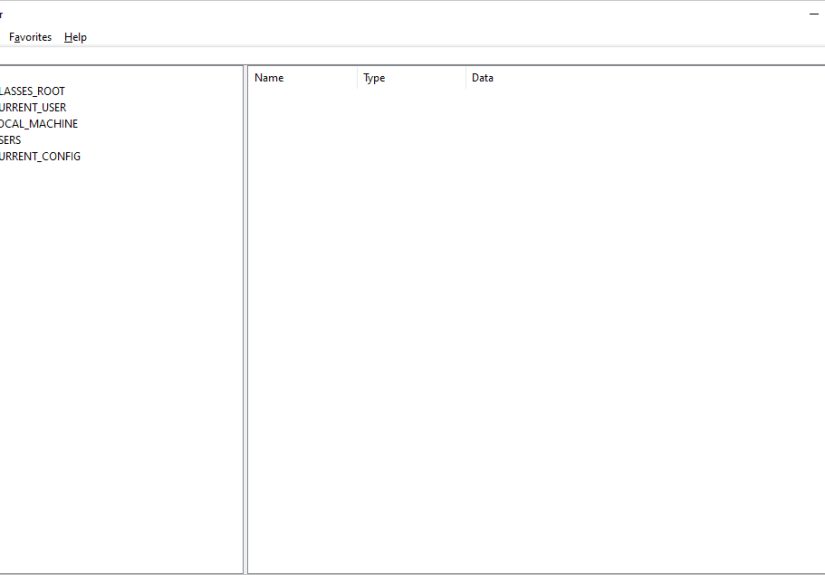
Once it opens, you’ll see a familiar two-pane layout:
- The left pane shows the hive/key tree, similar to Explorer folders.
- The right pane lists the values stored in the key you’ve selected.
Understanding Value Types
Registry values can have different data types. A few common ones:
- REG_SZ: A simple text string.
- REG_DWORD: A 32-bit number, often used for toggles and small numeric options.
- REG_QWORD: A 64-bit number for larger values.
- REG_BINARY: Raw binary data, usually not something you edit by hand.
- REG_MULTI_SZ: A list of strings.
When in doubt, don’t change the value typeit’s as important as the value itself.
How to Use the Windows Registry Safely
Now for the fun (and slightly scary) part: editing the Registry. The good news is that small, targeted changes are usually safe if you know what you’re doing and keep good backups. The bad news is that careless edits can break Windows in very dramatic ways.
Rule #1: Always Back Up Before You Edit
Before changing anything, export the key you’re about to modify. That way, you can restore it if something goes sideways.
How to Export a Registry Key
- In Registry Editor, navigate to the key you plan to edit.
- Right-click the key and select Export.
- Choose a location and file name, then save it as a
.regfile. - Keep that file in a safe spot (preferably outside the system drive if you’re making major changes).
How to Restore a Backup
- Locate the backup
.regfile. - Double-click it, or open Registry Editor and choose File > Import.
- Confirm that you want to merge the data into the Registry.
- Restart Windows if the change affects system services or drivers.
For very large or full-registry backups, note that importing everything while Windows is running may not work, because some keys are constantly in use. In those rare cases, more advanced restore methods or system image backups are safer.
Rule #2: Make Targeted, Minimal Changes
It’s tempting to search the Registry for everything related to some misbehaving app and start deleting. Resist that urge.
- Change only the keys and values a reliable guide or official documentation tells you to modify.
- Avoid mass “find and replace” operations unless you’re an experienced admin and have a full system backup.
- Don’t randomly delete keys just because they “look old” or “seem unnecessary.” That’s how long weekends rebuilding Windows begin.
Rule #3: Skip the Registry Cleaners
Many third-party tools promise to “clean” or “optimize” your Registry to speed up your PC. Most expertsand even Microsoftconsider these tools unnecessary at best and dangerous at worst.
Why? Because:
- Deleting a handful of unused entries rarely produces any measurable performance gain.
- Over-aggressive cleaning can remove keys that apps still depend on, causing crashes or subtle bugs.
- Some “cleaners” bundle unwanted software or even malware.
If the Registry is truly corrupted, the fix usually involves restoring from backup, using System Restore, or repairing Windowsnot running a magical cleaning tool.
Practical Things You Can Do with the Registry
You don’t need to become a low-level Windows internals guru to get value from the Registry. Here are a few practical, real-world uses.
Managing Startup Programs
While you can control startup apps through Task Manager or Settings, advanced users may need to verify or clean things directly in the Registry:
- Open
regedit. - Browse to:
HKCUSoftwareMicrosoftWindowsCurrentVersionRun(current user)HKLMSoftwareMicrosoftWindowsCurrentVersionRun(all users)
- Check the entries on the right for programs you recognize.
- If you see suspicious entries or programs you no longer use, back up the key and then remove the value.
Security professionals also watch these keys closely: malware often hides persistence here so it can relaunch after a reboot.
Tweaking Specific App or System Settings
Some advanced settings don’t appear in the regular Windows interface but can be adjusted via Registry entries. For example:
- Fine-tuning keyboard repeat delay and repeat rate.
- Controlling certain File Explorer behaviors.
- Adjusting hidden options in installed apps that are documented for IT admins.
The key is to follow up-to-date, trustworthy documentation and always create backups before you change anything.
When You Should Avoid the Registry
Despite all its power, the Windows Registry is not the place to experiment blindly. You should avoid editing it when:
- You’re trying to fix a problem that already has a safer fix in Settings, Control Panel, or the app’s own options.
- You don’t fully understand what a guide is asking you to change.
- You’re on a mission to “speed up Windows” without a specific issue to solve.
- The PC is mission-critical and you don’t have a recent system image or restore point.
Think of the Registry as a surgical tool, not a general cleaning product. When used with care, it’s incredibly effective. Used casually, it can do permanent damage.
Experiences and Lessons Learned from Using the Windows Registry
Working with the Windows Registry can feel a bit like handling a live electrical panel: if you respect it, label everything, and flip the right switches, you can solve tricky problems and make things work beautifully. Ignore basic safety and you’ll trip the breakeror worse.
A Typical “Why Is My PC So Slow?” Scenario
Imagine a PC that’s taking forever to start. Task Manager’s Startup tab shows only a handful of apps, but the system still feels bogged down the moment the desktop appears. An experienced user might suspect that there are extra startup entries hiding in the Registry.
By checking keys like HKCUSoftwareMicrosoftWindowsCurrentVersionRun and HKLMSoftwareMicrosoftWindowsCurrentVersionRun, you might find half-uninstalled software, legacy utilities, or even an outdated updater still trying (and failing) to launch at every boot. Export the keys, delete the unnecessary entries, reboot, and suddenly Windows feels lighter. It’s not magicjust targeted cleanup in the right place.
When a Tiny Value Fixes a Big Problem
Another common experience: an app refuses to remember a setting or keeps crashing at launch. Basic resets and reinstalling don’t solve it. In some cases, the culprit is a bad or corrupted value in the app’s Registry key under HKCUSoftware or HKLMSoftware.
Exporting the app’s key, then deleting it and letting the application recreate fresh settings on the next run, can “magically” fix the problem. You learn pretty quickly that the Registry is often where sticky, hard-to-reset preferences live. Again, the key is caution: you don’t wipe out entire branches of the Registryonly the specific app’s key after making a backup.
Learning to Respect Backups the Hard Way
Many people have a story that starts with “I thought I didn’t need a backup…” and ends with “…and then I spent my weekend reinstalling Windows.” Accidentally removing a driver configuration key or changing an incorrect numeric value can lead to boot failures, missing hardware, or random instability.
These experiences drive home a few best practices:
- Export before you edit. Even when you’re “just toggling a setting,” a quick export takes seconds and can save hours.
- Document what you changed. Keeping a simple text note of which keys and values you modified makes troubleshooting far easier later.
- Test after each change. Make one change at a time and restart or relaunch the app so you know exactly which tweak produced which result.
The Myth of the “Messy Registry”
It’s common to hear users say their Registry is a “mess” and that they need to “clean it out.” In reality, modern versions of Windows are designed to handle a large, busy Registry just fine. Leftover entries from uninstalled software usually don’t hurt anything.
Real-world experience and expert discussions show that performance gains from mass registry cleaning are minimal to nonexistent in most situations. Far more damage comes from aggressive tools that delete keys they don’t fully understand. People often learn this only after a cleaner breaks Office activation, printer drivers, or important system components.
So the practical takeaway is simple: treat registry cleaning as a precise, manual operation you perform for specific reasons, not a routine “maintenance” chore.
Using the Registry as a Power-User Tool
Once you’re comfortable with the basicsbackups, key navigation, and understanding value typesthe Registry becomes a powerful ally. You can:
- Roll out consistent settings across multiple PCs by exporting and importing specific keys.
- Unlock documented but hidden options in Windows or enterprise applications.
- Verify what’s really configured on a system instead of relying solely on GUIs that may hide advanced details.
Over time, you start to see the Registry as part reference library, part toolbox. You don’t live in it every day, but when something odd is going onor when you need a precise configuration tweakit’s where the most complete picture of your Windows environment lives.
Final Thoughts: Respect, Don’t Fear, the Windows Registry
The Windows Registry has a scary reputation, and to be fair, it has earned it. You can absolutely break things if you go on a random editing spree. But with patience, good documentation, and reliable backups, it becomes a practical, everyday tool for diagnosing problems, controlling startup behavior, and enabling advanced features.
Think of it like editing the advanced settings menu in a pro camera: most people never touch it, but power users who understand what each option does can get exactly the results they want. Learn the structure, follow safe practices, and the Windows Registry will stop being a mysteryand start being one of your favorite Windows power tools.