Table of Contents >> Show >> Hide
- What Google Play Services Actually Is
- Can You Fully Uninstall Google Play Services?
- When Uninstalling Updates Makes Sense
- What to Try Before You Roll It Back
- How to Uninstall Updates on Google Play Services
- What Happens After You Uninstall Updates?
- How to Update Google Play Services Again
- Common Problems and Fixes
- Is Uninstalling Updates Safe?
- Best Practices Before and After the Rollback
- Final Thoughts
- Real-World Experiences With Uninstalling Google Play Services Updates
- SEO Tags
If your Android phone suddenly starts acting like it drank six espressos and forgot how to behave, Google Play services is often one of the first places to check. It is not flashy. It does not have a cute icon you proudly tap. It mostly lurks in the background doing the unglamorous work of helping apps sign in, sync, use location, receive notifications, and talk nicely to Google’s ecosystem. In other words, it is the backstage crew keeping the show alive.
So what happens when a recent update seems to break something? Maybe apps keep crashing. Maybe Google account sync goes weird. Maybe the Play Store starts throwing a tantrum worthy of a reality TV reunion. In those cases, uninstalling updates on Google Play services can be a practical troubleshooting move. Not because it is magic, but because it rolls the app back to the factory version that shipped with your phone, which can help if a newer update went sideways.
This guide explains what uninstalling updates on Google Play services actually does, when it makes sense, how to do it safely, what risks to expect, and how to update again afterward. We will also cover common problems, device-specific menu differences, and the classic Android truth: the step names are sometimes the same, sometimes different, and sometimes hiding like they owe you rent.
What Google Play Services Actually Is
Before you start tapping around in Settings like a detective with a caffeine problem, it helps to understand what Google Play services does. Google Play services is a core Android component that connects apps to Google features such as sign-in, Maps-related functions, location services, syncing, and other background APIs. It is not the same thing as the Google Play Store, and it is also not the same thing as a Google Play system update.
That difference matters. The Play Store is the app marketplace. Google Play services is the behind-the-scenes helper for many apps. Google Play system updates, also called Mainline updates, are a separate type of modular system update for Android. So if you are trying to fix app crashes or account-related glitches, you are probably dealing with Google Play services, not the Play Store and not a full Play system update.
Can You Fully Uninstall Google Play Services?
No. Not in the normal, everyday, “I am just using my phone and not trying to become a weekend firmware archaeologist” sense. Google Play services is built into Android on supported devices. You typically cannot remove it entirely the way you would uninstall a game or a shopping app you downloaded during a 2 a.m. impulse spree.
What you can usually do is uninstall its updates. That rolls the app back to the version originally installed on the device. This can be useful when a recent update appears to cause bugs, but it is not a permanent removal. In many cases, Google Play services will update itself again later once the phone is stable and connected.
When Uninstalling Updates Makes Sense
Uninstalling updates on Google Play services is not step one. It is more like step three or four, after the obvious fixes have had their moment. It can make sense when:
- Apps suddenly start crashing after a recent Google-related update.
- You keep seeing “Google Play services keeps stopping” messages.
- Google account sync, notifications, or location features stop behaving normally.
- Play Store downloads fail and basic troubleshooting did not help.
- Your device maker’s support steps specifically recommend uninstalling Google Play services updates.
It is especially reasonable when the trouble seems sudden and widespread. In plain English: if everything was fine on Tuesday, then awful on Wednesday, and you did not drop the phone into soup, a buggy update is a fair suspect.
What to Try Before You Roll It Back
Because Google Play services touches so many parts of Android, you should start with the least dramatic fixes first. Think of this as trying the doorknob before kicking the door open.
1. Restart the Phone
Yes, the oldest joke in tech support is still alive because it keeps working. A restart can clear temporary glitches and background processes that got stuck in a bad mood.
2. Check for an Update
Sometimes the bad behavior is already fixed in a newer release. On many devices, you can navigate to Google Play services through Settings and look for an update option. You can also make sure your phone’s Android software is current.
3. Clear Cache
Clearing cache is the low-risk cleanup option. It removes temporary files without wiping everything. If Google Play services is simply tripping over stale data, this can help.
4. Clear Data Only If Necessary
Clearing data is more aggressive. It can remove saved information, and Google notes you may need to sign in again or reauthenticate payment methods. So do this only after easier fixes fail.
How to Uninstall Updates on Google Play Services
Now for the main event. Exact wording varies by Android version and manufacturer, but the process is usually very similar.
Method 1: Standard Android Steps
- Open Settings.
- Tap Apps, Apps & notifications, or Applications.
- Tap See all apps if needed.
- Find and select Google Play services.
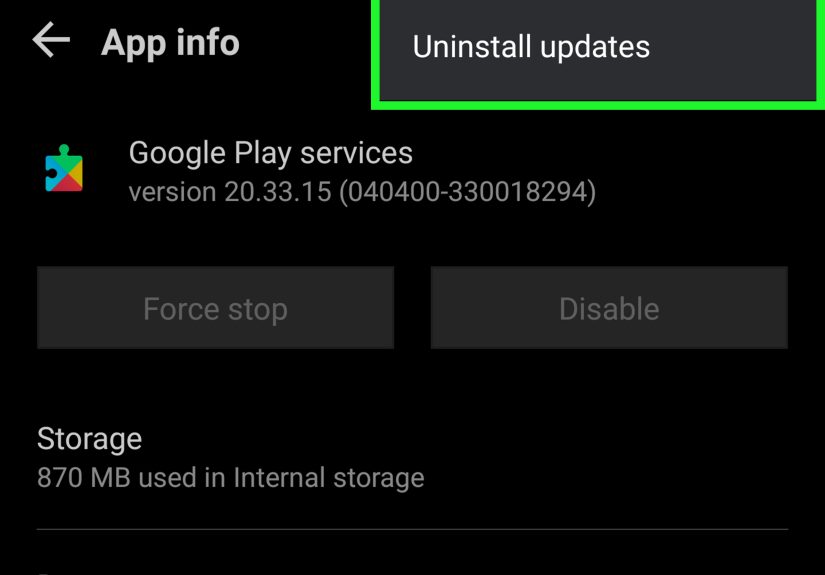
- Tap the three-dot menu or More in the top-right corner.
- Choose Uninstall updates.
- Confirm by tapping OK.
That is the usual path on many Android phones. On some devices, the option only appears if updates are currently installed. On others, the app may be treated as a system app, so you may have to enable Show system apps or use the search field inside the Apps menu to find it.
Method 2: If You Cannot Find Google Play Services
If Google Play services is not visible, do not panic and do not assume your phone has entered a secret society. Try these moves:
- Use the search bar inside the Apps menu.
- Tap See all apps.
- Open Filter and sort and enable Show system apps.
Samsung devices, in particular, sometimes tuck system apps behind that extra filter. If you do not reveal system apps, Android can make it look like Google Play services packed up and moved to Arizona.
Method 3: On Samsung Phones
Samsung’s support guidance is refreshingly direct here. Go to Settings > Apps, search for Google Play Services, open it, tap the three vertical dots, and choose Uninstall updates. Then restart the phone and check for software updates.
What Happens After You Uninstall Updates?
Your phone will roll Google Play services back to the older version that came with the device. That can temporarily resolve bugs introduced by a newer release. In many cases, you will want to restart the phone immediately afterward. This gives Android a chance to settle down and reload the component properly.
Do not be surprised if some Google-connected features act odd for a few minutes after the rollback. Because Google Play services supports sign-in, notifications, syncing, location-related features, and other app connections, it may need a little time to reinitialize. Think of it as your phone putting its socks back on after sprinting through a thunderstorm.
How to Update Google Play Services Again
Rolling back is usually a temporary troubleshooting step, not a long-term lifestyle choice. Once the phone stabilizes, you will often want the latest working version again for security, bug fixes, and compatibility.
To update Google Play services, open your phone’s Settings and navigate to the Google Play services page if your device shows an Update or Install option there. You should also check for Android system updates through your phone’s Software update or System update section. If Google Play services does not update right away, give it a little time while connected to Wi-Fi and power.
Also remember: turning off ordinary app auto-updates in the Play Store is not always a reliable way to freeze Google Play services forever. It is a core system component, and Android tends to keep those pieces moving for security and compatibility reasons.
Common Problems and Fixes
The “Uninstall updates” Option Is Missing
This usually means one of three things: the app is hidden among system apps, the phone maker changed the menu layout, or there are no updates installed to roll back. Check Show system apps, use search, and make sure you are on the actual Google Play services page and not the Play Store page.
The Phone Still Has Problems After the Rollback
Try this sequence:
- Restart the device.
- Clear the cache for Google Play services.
- Clear the cache for Google Play Store.
- Check Android system updates.
- Check if the problem happens in Safe Mode.
If the issue disappears in Safe Mode, a third-party app may be causing the conflict. That is Android’s polite way of saying, “It might not be me. It might be one of the weird things you installed.”
Apps Still Crash or Refuse to Download
Then widen the troubleshooting circle. Clear cache and data for the Play Store, verify your internet connection, and make sure the date and time settings are correct. Google’s own help pages still point to Play Store cleanup as one of the most common fixes when downloads fail.
Is Uninstalling Updates Safe?
Usually, yes, as a troubleshooting step. But it is not something to do casually just because your phone feels a little moody. Newer updates often contain bug fixes, compatibility improvements, and important security improvements. That means staying permanently on an old version is not ideal.
A smart approach is this: use uninstalling updates as a short-term rollback when a fresh update appears to be the source of the problem. Then, once the device is stable, update again. It is less “I am overthrowing the system” and more “I am taking one step back so the phone can stop yelling at me.”
Best Practices Before and After the Rollback
- Restart the phone before and after uninstalling updates.
- Use Wi-Fi when checking for new updates afterward.
- Clear cache before clearing data.
- Do not confuse Google Play services with Google Play Store or Google Play system updates.
- Check whether your device brand has different menu names.
- Do not ignore future updates forever unless you enjoy preventable app drama.
Final Thoughts
If your Android phone is suddenly acting like it has developed performance art tendencies, uninstalling updates on Google Play services can be a very practical fix. It will not solve every issue, and it definitely is not the first tool you should grab, but it is a legitimate troubleshooting step supported by official help guidance and device makers.
The biggest takeaway is simple: you are not uninstalling Google Play services itself. You are removing the recent updates and rolling it back to an earlier built-in version. That distinction matters, because Google Play services is one of Android’s core support beams. Remove the paint if you need to. Do not yank out the beam and expect the house to smile about it.
Used thoughtfully, this fix can help restore stability when crashes, sign-in issues, or Play-related glitches appear after an update. Just be smart, restart your device, update again when things calm down, and let your phone return to its normal life of quietly judging your screen time.
Real-World Experiences With Uninstalling Google Play Services Updates
In real use, people usually do not go looking for Google Play services because they are curious. They go looking because something annoying happened first. A common story starts with a phone that was perfectly normal in the morning and weird by dinner. Maps begins freezing, Gmail notifications arrive late, or an app that always behaved suddenly closes like it is offended. When users dig through Android settings, they often find that uninstalling updates on Google Play services is one of the few fixes that actually changes something right away.
One typical experience is the “nothing will sync” problem. A user notices calendar events are late, Google account prompts keep appearing, and the Play Store seems sluggish. Restarting helps for ten minutes, then the chaos returns. After uninstalling updates on Google Play services and rebooting again, the phone often becomes usable almost immediately. Not perfect, but calmer. Notifications begin arriving again, sign-in prompts stop multiplying, and the device feels less like it is improvising its own operating system.
Another very common case involves app crashes. Someone updates their phone, opens an everyday app, and gets thrown back to the home screen. They clear cache, mutter something unfriendly, try again, and get the same result. Rolling back Google Play services updates can work here because so many apps depend on that background layer. When the connection between apps and Google’s services becomes unstable, the visible symptom is often “this random app is broken,” even though the real trouble lives deeper in the system.
Samsung owners often report a slightly different experience: they cannot even find the option at first. That usually turns into a scavenger hunt through Settings, Apps, search bars, and hidden system app filters. Once they locate Google Play services, the fix itself is quick. The hard part is getting past Android’s habit of hiding important stuff behind tiny menus like it is protecting buried treasure.
There is also the emotional journey, which deserves its own award. At first, users are cautious because “uninstall updates” sounds dramatic, like something that should require a helmet and legal paperwork. Then they realize it is simply a rollback, not a full deletion, and the fear level drops from “I might brick my phone” to “fine, let’s try this before I throw the charger across the room.”
The most practical lesson from these experiences is that uninstalling updates works best as part of a sequence. Restart first. Clear cache second. Roll back updates third. Restart again. Then update again later once the device is stable. People who skip the restart or never recheck for updates often end up confused when the phone keeps acting strange. People who treat the rollback as a temporary fix usually get better results and fewer surprises.
In short, the lived experience around Google Play services is not glamorous, but it is useful. When Android starts behaving like a soap opera, uninstalling updates can be the scene where the plot finally makes sense.