Table of Contents >> Show >> Hide
- Before You Start: Prep Your Old and New Android Phones
- Method 1: Use Google’s Built-In Android Transfer Tool (Recommended)
- Method 2: Restore From a Google Backup
- Method 3: Manufacturer-Specific Transfer Apps
- What Won’t Transfer Automatically (And How to Handle It)
- After Setup: Essential Post-Transfer Checks
- Common Problems and Simple Fixes
- Real-Life Experiences: What It’s Actually Like Setting Up a New Android ()
- Conclusion: A Fresh Start Without Starting Over
Unboxing a new Android phone is a special kind of joy. It smells like fresh plastic and unrealized potential. Then reality hits: contacts, photos, apps, messages, settings, and that one wallpaper you’ve had since 2018. The good news? Moving everything from your old Android to your new one is easier than ever. The even better news? You don’t need to be a tech wizardor sacrifice your sanityto do it.
This guide walks you step by step through how to set up a new Android from an old phone, explains your best transfer options, highlights common pitfalls, and shares real-world experiences that make the process smoother (and less stressful).
Before You Start: Prep Your Old and New Android Phones
A smooth setup starts before you even power on your new device. Think of this as stretching before a workoutskip it, and something will hurt.
1. Fully Charge Both Phones
Data transfers can take anywhere from 10 minutes to over an hour. A dead phone mid-transfer is the tech equivalent of pulling the power cord during surgery.
2. Connect to a Stable Wi-Fi Network
Even if you’re using a cable, Wi-Fi speeds things up and prevents failed transfersespecially for photos, videos, and cloud data.
3. Update Your Old Android
Running the latest Android version helps avoid compatibility issues, especially when moving data to a newer phone.
4. Clean Up Your Data (Optional but Smart)
- Delete unused apps
- Back up photos you don’t need locally
- Remove duplicate files
Less clutter means faster transfer and a cleaner start.
Method 1: Use Google’s Built-In Android Transfer Tool (Recommended)
If you do one thing right, do this. Google’s setup tool is built directly into Android and works across nearly all brands.
What You Can Transfer
- Contacts
- SMS and MMS messages
- Photos and videos
- Apps and app data (most of the time)
- Google account settings
- Call history
Step-by-Step Transfer Using a Cable
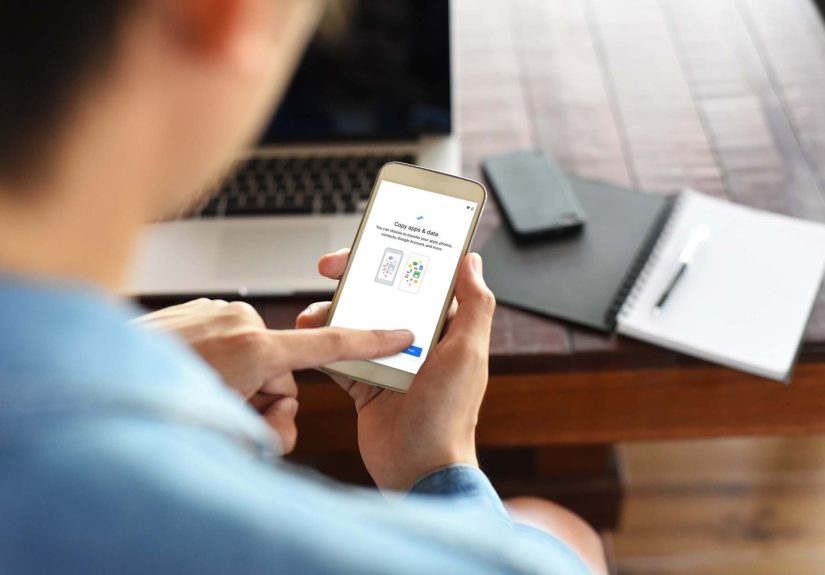
- Turn on your new Android phone.
- Select your language and tap Start.
- When prompted, choose to copy data from another Android.
- Connect both phones using a USB-C cable (or USB-A to USB-C if older).
- Unlock your old phone and approve the transfer.
- Select what you want to copy and tap Transfer.
This method is fast, reliable, and doesn’t depend heavily on cloud backups.
Wireless Transfer Option
No cable? No problem. Android also allows wireless transfers over Wi-Fi, though it’s slightly slower and more sensitive to connection drops.
Method 2: Restore From a Google Backup
If your old phone is goneor already wipedGoogle Backup can save the day.
How to Check Your Backup
On your old phone, go to:
Settings → Google → Backup
Make sure the latest backup is recent.
How to Restore During Setup
- Turn on your new Android phone.
- Sign in with the same Google account.
- Select the most recent backup.
- Choose what to restore.
This method works well for contacts, apps, and system settings, but media files may take longer to re-sync.
Method 3: Manufacturer-Specific Transfer Apps
Some Android brands like to do things their own wayand honestly, they do it well.
Popular Brand Tools
- Samsung Smart Switch
- OnePlus Clone Phone
- Xiaomi Mi Mover
- OPPO Clone Phone
These apps often support additional data types like home screen layouts and manufacturer-specific settings.
If you’re staying within the same brand, these tools are often faster and more complete.
What Won’t Transfer Automatically (And How to Handle It)
No setup process is perfect. Here’s what may need manual attention:
App Logins
Banking, payment, and secure apps often require re-login for security reasons.
WhatsApp and Messaging Apps
Make sure chats are backed up within the app before switching phones.
Ringtones and Downloads
Custom files stored outside system folders may need to be moved manually.
After Setup: Essential Post-Transfer Checks
- Confirm contacts synced correctly
- Test calls and messaging
- Open critical apps (banking, work, 2FA)
- Verify photo and video access
- Enable Find My Device
This is also a good time to explore new features on your upgraded Android version.
Common Problems and Simple Fixes
Transfer Stuck or Frozen
Restart both phones, reconnect the cable, and try again.
Missing Apps
Some apps don’t support auto-restore. Download them manually from the Play Store.
Battery Drains Fast
Background syncing can drain battery the first day. This usually settles within 24 hours.
Real-Life Experiences: What It’s Actually Like Setting Up a New Android ()
On paper, setting up a new Android from an old phone sounds effortlessand most of the time, it is. But real-world experience adds context that instructions never cover.
For many users, the most surprising part is how much transfers automatically now. People upgrading from phones that are three or four years old often expect chaos, only to find their contacts, photos, and even Wi-Fi passwords magically appear. There’s a momentusually about ten minutes into the transferwhere anxiety turns into relief. That moment is universal.
However, patience matters. Several users report unplugging the cable too early, thinking the phone was frozen. It wasn’t. It was just moving thousands of photos taken at family gatherings, vacations, and blurry pictures of pets that probably didn’t need to come along. Lesson learned: let the phone do its thing.
Another common experience is rediscovering apps you forgot existed. Old fitness apps, unused social platforms, or that game you installed during a boring flight in 2019 suddenly reappear. This becomes an unexpected opportunity to clean house. Many users end up uninstalling a third of their apps within a day of switching.
Messaging apps are also a recurring theme. People who forget to back up chats inside apps like WhatsApp often feel a brief moment of panic, followed by the realization that cloud backups exist for a reason. Once restored, conversations appear like nothing ever happenedwhich is oddly comforting.
Then there’s the emotional side. A new Android phone often feels faster, smoother, and more responsive. Simple actionsopening the camera, switching apps, unlocking the screenfeel noticeably improved. Users describe it as “finally upgrading to how the phone was always supposed to feel.”
There are hiccups, of course. Banking apps sometimes lock users out temporarily. Two-factor authentication apps require extra setup. Work profiles may need IT approval. But these issues are rarely deal-breakers and usually resolved within minutes.
Interestingly, many users say the hardest decision isn’t technicalit’s aesthetic. Choosing whether to recreate the exact same home screen layout or start fresh is oddly personal. Some replicate everything muscle-memory-style. Others take the new phone as a sign to redesign their digital lives.
By the end of the process, most people report the same feeling: relief mixed with excitement. The transfer is done, nothing is lost, and the new phone feels like home. That’s the real goalnot just copying data, but continuity.
Conclusion: A Fresh Start Without Starting Over
Setting up a new Android from an old phone used to feel intimidating. Today, it’s closer to routine. With built-in tools, smart backups, and brand-specific apps, your digital life can move with youphotos, messages, and all.
Take your time, follow the steps, and don’t rush the process. Your new Android isn’t just a deviceit’s a continuation of everything you already use every day.