Table of Contents >> Show >> Hide
- Quick Answer: The 3 Fastest Ways
- First: Know Which “Comments” You Mean
- Method 1: See Your Comments on YouTube (Desktop Web)
- Method 2: See Your Comments on YouTube (Mobile App)
- Method 3: Use Google “My Activity” (Best for Searching & Filtering)
- Method 4: If You’re a Creator, Use YouTube Studio to See Comments on Your Channel
- Shortcuts That Save Your Sanity
- Why You Can’t Find Your Comment (And What to Do About It)
- Mini FAQ
- Real-World Experiences: What People Actually Run Into (And How They Handle It)
- Conclusion
Ever had that cold-sweat moment where you remember leaving a comment on YouTube… but you can’t remember
where, when, or what you said? (Was it helpful? Was it dramatic?
Was it a bold “first!!!” from your chaotic era?)
Good news: YouTube and your Google account keep a trail of your public comments. Better news: you can usually jump
straight back to the video, edit what you wrote, or delete it. And if you’re a creator, you can also review comments
people leave on your videos using YouTube Studio.
This guide shows multiple ways to find your YouTube comment history on desktop and mobile, plus troubleshooting tips
for the classic “why can’t I find my comment?” mystery.
Quick Answer: The 3 Fastest Ways
-
Desktop (best and easiest): YouTube → History → Comments
(or go directly to your YouTube Comment History page). -
Mobile (most reliable): Use Manage all history to open Google’s YouTube activity
and filter by Interactions → Comments & replies. -
Creators: Use YouTube Studio (desktop or Studio app) to see and manage comments on
your channel.
First: Know Which “Comments” You Mean
YouTube has two different “comment worlds,” and mixing them up is the #1 reason people get stuck:
- Comments you posted on other people’s videos (your “comment history”).
- Comments people posted on your videos (your “channel comments,” managed in YouTube Studio).
If you want to see everything you’ve ever typed in YouTube comment sections, start with your
Comment History or My Activity. If you want to moderate your channel, jump to the
YouTube Studio section below.
Method 1: See Your Comments on YouTube (Desktop Web)
If you can use a laptop/desktop even for two minutes, do it. This is the cleanest view and the easiest way to jump
back to the original comment thread.
Option A: Use the YouTube History Menu
- Go to YouTube in a web browser and make sure you’re signed in.
- Click History in the left-side menu.
- On the History page, look for Comments (often shown on the right side as a filter).
- You’ll see a scrolling list of comments you’ve made. Click one to return to the video and find it highlighted.
Option B: Go Straight to Your Comment History Page
YouTube has a dedicated Comment History page. If you prefer shortcuts, you can navigate directly by opening YouTube
and going to your Comment History (you may see it as a “feed/history/comment_history” page).
What You Can Do From Comment History
- Jump back to the original video where you commented (helpful if someone replied and you want context).
-
Edit or delete the comment by opening it on the video page and using the comment’s menu (typically a
three-dot option). -
Grab a direct link to your comment in a thread by clicking the comment timestamp (useful when you
want to show someone your brilliant joke or your extremely specific Star Wars opinion).
Reality check: This history shows your public comments. If a video was deleted, or if YouTube
removed a comment for policy reasons, it may not appear the way you expect.
Method 2: See Your Comments on YouTube (Mobile App)
On mobile, YouTube tends to hide the “comment history” path behind a few taps. The most consistent route is through
your YouTube activity controls.
Steps (Typical Path)
- Open the YouTube app and sign in to the correct account (double-check if you have multiple).
- Tap your profile icon.
- Find Settings (or an option like Manage all history / Manage all activity).
- This opens your Google activity view for YouTube. Tap Interactions.
- Choose Comments & replies to see a list of comments you’ve posted.
From there, you can tap an item to revisit the video/context. If your goal is to find a specific comment quickly,
use the built-in search/filter tools (date ranges can be a lifesaver if you know it was “sometime last summer”).
Mobile Tip: Use “Desktop Site” in Your Browser
If the app path is acting weird (it happens), open YouTube in your phone’s browser, switch to Desktop site,
and use the desktop method (History → Comments). It’s not glamorous, but it’s effectivelike using a fork to eat cake
because all the spoons are missing.
Method 3: Use Google “My Activity” (Best for Searching & Filtering)
If you’re trying to find a comment from a specific time period (or you remember a keyword you used), Google’s YouTube
activity view can be the most powerful tool in the lineup.
Why My Activity Helps
- Searchable: Great when you remember a phrase like “this fixed my audio” or “plot twist.”
- Filterable: Use dates to narrow down the scroll-fest.
- Consistent across devices: Helpful if your app layout looks different from someone else’s.
How to Use It (In Plain English)
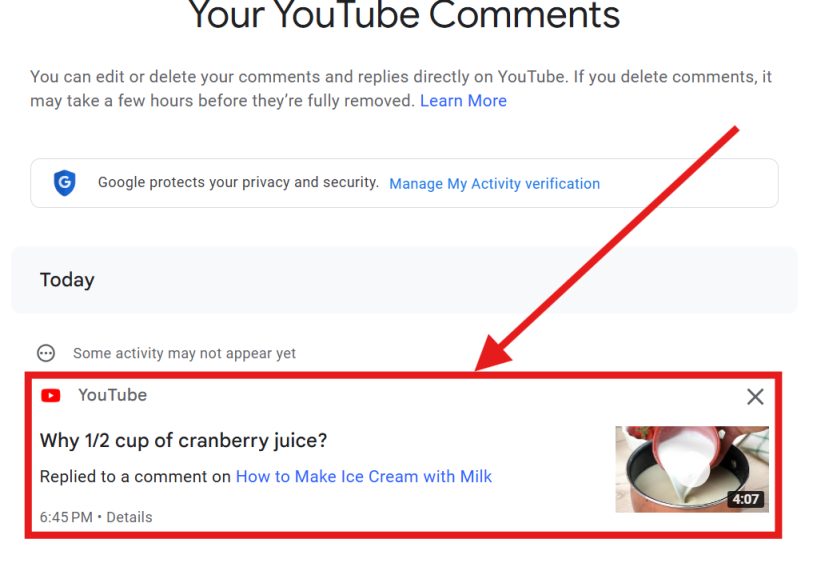
Open your Google activity page for YouTube, filter to Interactions, then open
Comments & replies. You’ll see a running list of your comment activity tied to that Google account.
Pro move: If you’re cleaning up old comments, use My Activity to locate the comment quickly, then jump
to the video page to edit/delete the comment itself so the public thread updates.
Method 4: If You’re a Creator, Use YouTube Studio to See Comments on Your Channel
If you run a channel (even a tiny one) and you’re trying to find comments people left on your videos, YouTube
Studio is the control center. It’s where you can reply, hide users, review “held for review” comments, and clear spam.
YouTube Studio (Desktop)
- Open YouTube Studio in your browser and sign in.
- In the left menu, go to Comments (or Community, depending on layout).
- Use filters like Published, Held for review, and Likely spam.
- Reply, heart, pin (where available), or moderate using the menu options.
YouTube Studio App (Mobile)
The YouTube Studio app includes a comments management area (often under Community). You can view all
comments, sort, and respond right from your phoneperfect when you want to reply quickly without opening 12 browser tabs.
Shortcuts That Save Your Sanity
1) Check Notifications for Recent Replies
If someone replied to your comment recently, the fastest path might be your Notifications (the bell icon).
This is especially useful when you’re not hunting ancient historyjust trying to find a thread you were in yesterday.
2) Sort Comments by “Newest First” When You’re Looking for Your Comment
On a video page, switch the comments sort to Newest first to help locate your commentespecially if it’s
recent and the video has a massive comment section.
3) Use a “Keyword Memory” Trick
If you remember even one unique word you used (a name, a niche term, a very specific emoji combo), use My Activity search
to locate the entry faster than scrolling through months of “LOL” and “Thanks!”
Why You Can’t Find Your Comment (And What to Do About It)
Sometimes the issue isn’t you. Sometimes it’s the internet doing internet things.
Your Comment Might Not Be Visible Because…
- The creator moderated it: Some channels hold comments for review, filter certain words, or auto-hide links.
- YouTube removed it: If a comment violates policy or gets flagged as spam, it can be removed.
- Comments are disabled: Some videos (including many “made for kids” videos) don’t allow comments.
- The video was deleted or made private: Your comment may not appear normally if the content disappeared.
-
You’re on the wrong account: The most common “facepalm” causeespecially if you have a personal account,
a brand account, and a “this email was made in middle school” account.
Quick Troubleshooting Checklist
- Confirm the account: Sign out/in or switch accounts and try again.
- Use Comment History on desktop: It’s the most straightforward view.
- Try My Activity filtering: Use date ranges and search terms.
- On the video page: Sort by “Newest first” and scan around the time you posted.
- Consider moderation: If you posted on a channel with strict filters, it may never have gone public.
Mini FAQ
Can other people see my full YouTube comment history?
Not as a neat “all-in-one” list. Other people can see individual comments you left on public videos if they find them in
the thread, but they can’t open your profile and browse a complete history the way you can when signed into your account.
Does this include comments on Shorts?
Generally, yesyour comment history is meant to reflect public comments you’ve left across YouTube, including Shorts.
If something is missing, check whether the content was deleted, made private, or moderated.
Can I edit old comments?
Yes. Find the comment (via Comment History or My Activity), open it on the video page, then use the comment menu to edit
or delete. Editing is great when you want to fix a typo; deleting is great when you want to erase evidence of your
“all caps phase.”
Why does it take me forever to find my comment on a popular video?
Because popular videos have oceans of comments, and YouTube loads them in batches. Use Comment History/My Activity to
jump in closer to the right spot instead of infinite scrolling.
Real-World Experiences: What People Actually Run Into (And How They Handle It)
To make this guide feel less like a sterile instruction manual and more like a helpful friend who has watched humans
wrestle technology, here are some common “this is my life now” situations people experience when trying to see their
YouTube commentsand what usually works.
The “I Know I Commented, But It Vanished” Panic
You leave a thoughtful comment, come back later, and it’s gonelike it got raptured. In most cases, one of three things
happened: the creator has moderation filters, the comment got auto-flagged as spam (especially if it included a link),
or the video’s comment settings changed. People usually solve this by checking their comment history first (to confirm
it exists) and then clicking through to the video. If the comment doesn’t show on the video page, they try sorting by
“Newest first.” If it still doesn’t appear, moderation is the likely culprit. The emotional arc is always the same:
confusion → mild outrage → acceptance → “fine, I’ll comment again, but calmer.”
The “Nostalgia Dive” (a.k.a. Finding a Comment From Years Ago)
People often go searching because they remember a random wholesome momentmaybe they encouraged a small creator, or they
had a back-and-forth conversation in the comments that felt like a tiny internet friendship. This is where My Activity
shines. The trick is to remember anything: a creator name, a keyword, or even the year. Once they find it,
they click through, reread the thread, and immediately think, “Wow, I used to type like that?” It’s equal parts adorable
and deeply humbling.
The “Which Account Did I Use?!” Mystery
This one is incredibly common. Someone has multiple Google accounts (school, work, personal) and maybe a Brand Account.
They’re sure they commentedexcept they’re checking the wrong profile. The fix is boring but effective: switch accounts
and check comment history again. The funny part is how often people discover an alternate version of themselves living
inside another accountdifferent subscriptions, different watch history, and a comment trail that reads like a parallel
universe.
The Creator’s Routine: “Coffee, Studio, Comments, Repeat”
Creators often aren’t trying to find comments they wrotethey’re trying to manage comments they receive. Many creators
build a routine around YouTube Studio: respond to genuine questions, heart supportive messages, and quietly remove the
nonsense. A typical experience is noticing that some comments are missing from “Published” because they got held for
review or caught in spam filters. Once creators learn to check “Held for review” regularly, they catch real comments
that accidentally got trapped. (It’s like rescuing good people from the spam dungeon.)
The “I Commented on a Live Stream and Now I Can’t Find It” Problem
Live chat moves fast. People post something helpful in the moment, then later want to find it again. The practical
workaround is the same: locate the activity entry first (so you’re not trying to replay an entire stream in your head),
then jump to the content. Expectations matter herelive chat is a blur by nature, so finding a specific message can be
harder than finding a matching sock in a laundry basket.
The big takeaway from all these experiences is simple: when in doubt, don’t scroll harderuse the tools that were built
for finding your activity. Comment History and My Activity are your map. Scrolling is just wandering in the wilderness
with a flashlight and a dream.
Conclusion
Seeing your comments on YouTube doesn’t have to be a scavenger hunt. If you want the fastest, cleanest view, use the
desktop Comment History. If you’re on mobile, “Manage all history” and the Interactions filter in My Activity will help
you find comments without endless scrolling. And if you’re a creator, YouTube Studio is the best place to review,
reply, and moderate what’s happening on your channel.
Whether you’re looking to relive a wholesome moment, clean up your digital footprint, or just figure out where you left
that oddly specific comment about microphone settingsnow you’ve got a plan.