Table of Contents >> Show >> Hide
- What NFC Is (and Why It Feels Like Magic)
- Quick Setup: Turn On NFC and Find the “Tap Spot”
- Fun Way #1: Create Real-World “Buttons” With NFC Tags (Automation Mode)
- Fun Way #2: Make “Tap-to-Share” Stickers (Your IRL Link in the Real World)
- Fun Way #3: One-Tap Connections (Bluetooth Pairing + Wi-Fi Access)
- Fun Way #4: Turn Everyday Errands Into a Tap Game (Pay, Ride, Enter)
- NFC Safety, Privacy, and “Don’t Get Pranked by a Sticker” Tips
- Quick FAQ
- 500-Word Add-On: Real-World NFC Setups People Actually Enjoy
- Conclusion
Your Android phone is probably carrying a tiny superpower you don’t use enough: NFC (Near Field Communication).
It’s the “tap” technology behind contactless payments, but it’s also the secret sauce for quick connections, clever automations,
and little real-life “buttons” you can stick around your home, desk, or car.
If that sounds like sci-fi, good news: the learning curve is more “tap and grin” than “read a manual the size of a toaster.”
Below are four genuinely fun ways to use NFC on Androidplus practical steps, examples, and a big friendly reminder about safety
(because nothing kills a vibe like accidentally opening a sketchy link).
What NFC Is (and Why It Feels Like Magic)
NFC is a short-range wireless tech designed for quick, intentional interactionsusually by bringing your phone very close to a tag,
terminal, or accessory. It’s “short-range” on purpose: you typically have to tap (or nearly tap) for it to work, which makes NFC
perfect for things you want to happen only when you mean it.
Think of NFC like a real-world shortcut button:
tap → confirm (sometimes) → action happens.
The action might be paying for coffee, connecting to Wi-Fi, pairing headphones, or launching an automation routine.
Quick Setup: Turn On NFC and Find the “Tap Spot”
NFC settings can vary by brand (Samsung, Pixel, Motorola, etc.), but the easiest universal trick is:
open Settings and search “NFC.”
- Turn NFC on: Settings → search “NFC” → toggle it on (sometimes under “Connections” or “Connected devices”).
- Optional: add the NFC toggle to Quick Settings so you can flip it on/off in seconds.
- Find your NFC antenna area: often near the upper back of the phone (but it differstest by tapping slowly around the back).
Pro tip: if a tag or terminal doesn’t respond, don’t panicjust adjust where you tap.
The “sweet spot” can be surprisingly specific (and yes, it’s normal to look like you’re trying to pet your phone).
Fun Way #1: Create Real-World “Buttons” With NFC Tags (Automation Mode)
If you’ve ever wished your phone had a physical “Go into car mode” or “Start bedtime routine” button, NFC tags are your answer.
An NFC tag is a cheap little sticker/card with a tiny chip inside. You can program it to trigger actions when your phone taps it.
What you can do with a single tap
- Bedtime mode: silence notifications, lower brightness, set an alarm, start white noise, and open your to-do list for tomorrow.
- Work mode: turn on Do Not Disturb exceptions, open Slack/Email, launch your time tracker, and connect to office Wi-Fi.
- Car mode: enable Bluetooth, launch Maps, start a “Driving” playlist, and text your ETA (with a template).
- Gym mode: open your workout app, start a timer, and cue up the playlist that makes you feel like a movie montage.
How to set it up (simple version)
- Buy a small pack of NFC tags (common types work fine for most “tap to open” or “tap to connect” tasks).
- Install an NFC writing app (many people use apps that can write URLs, text, contacts, or Wi-Fi info to tags).
- Decide what the tag should do: open an app, open a URL, share contact info, connect to Wi-Fi, or trigger an automation.
- Write the action to the tag, then test it by tapping.
- Label the tag (seriouslyfuture-you will thank you).
How to level it up (automation apps)
For “real” automationmultiple actions with conditionspeople often use automation apps that can react to a scanned NFC tag and run a task.
This is where NFC goes from “shortcut” to “mini robot assistant.”
- Example: Tap a tag by your front door → phone turns Wi-Fi off, turns Bluetooth on, opens Maps, and sets media volume.
- Example: Tap a tag on your nightstand → sets alarm, turns on Do Not Disturb, starts a sleep timer, and dims the screen.
- Example: Tap a tag on your desk → opens your “work stack” apps and starts a focus timer.
The fun part is that NFC tags are physical. You’re not hunting for a widget or a settings menuyou’re tapping a real object in the place
where you actually need the action. That’s the “aha!” moment.
Fun Way #2: Make “Tap-to-Share” Stickers (Your IRL Link in the Real World)
NFC tags aren’t just for automationsthey’re incredible for sharing things instantly. One tap can open a website, a playlist,
a photo album, a digital menu, a group chat invite, or your “here’s everything about me” profile page.
Tap-to-share ideas that people actually use
- Digital business card: tap to open your contact card or profile.
- Party playlist tag: stick a tag near the speakertap to open the playlist.
- House guest helper: tap to open a page with house rules, emergency contacts, and the Wi-Fi details.
- Kid-friendly “tap to learn” spots: tags on bookshelves that open a read-aloud video list or a safe learning page.
- Travel binder tag: tap to open flight/hotel confirmations (stored privately) or a packing list.
How to set up tap-to-share (no drama)
- Pick what you want to share (URL, contact card, text note, etc.).
- Write that info to the tag using an NFC writing app.
- Test it with your phone and (if possible) a friend’s phone.
- Place it where it makes sense: desk corner, speaker stand, fridge, or the back of a badge holder.
Humor meets practicality: if you put an NFC tag on your fridge that opens your grocery list, you’ve basically invented “smart fridge”
without paying “smart fridge” money. Congratulations. Your bank account is proud of you.
Fun Way #3: One-Tap Connections (Bluetooth Pairing + Wi-Fi Access)
NFC can make the most annoying little tech chores disappear. Instead of digging through menus to pair a device or join a network,
a tap can handle the setup steps instantly (or at least get you 90% of the way there).
A) Tap-to-pair Bluetooth (the “why isn’t it connecting?” cure)
Some headphones, speakers, and accessories support NFC pairing built-intap your phone to the marked NFC spot on the device and
it helps pair faster than manual Bluetooth discovery.
Even if your gadget doesn’t support it natively, you can program a tag to connect to a specific Bluetooth device
or open the right settings pageso your car mount, desk speaker, or controller becomes a one-tap setup.
B) Tap-to-join Wi-Fi (the guest network’s best friend)
Want to feel like a wizard? Create a Wi-Fi NFC tag. Guests tap it and their Android phone can pull up the network details so they can connect
without you dramatically whispering your password like it’s a spy code.
This is perfect for:
- Friends coming over (no more “what’s the Wi-Fi?” every 12 minutes)
- Home offices or studios
- Small businesses (with a dedicated guest network)
Fun Way #4: Turn Everyday Errands Into a Tap Game (Pay, Ride, Enter)
This is the “NFC is everywhere” category. It’s not just fun because it’s fastit’s fun because it turns boring moments
(checkout lines, transit gates, door access) into a smooth little tap-and-go move.
A) Tap to pay (and stop carrying 47 loyalty cards)
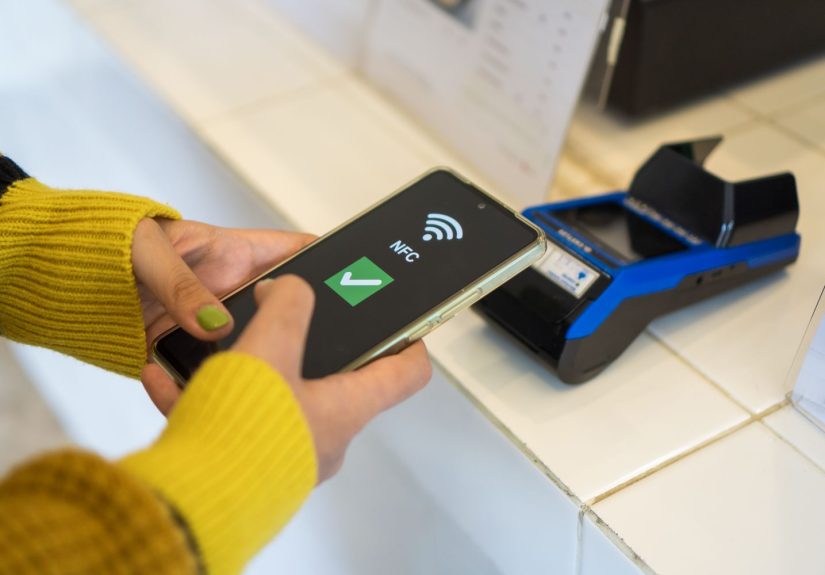
With mobile wallet apps, NFC lets you pay at contactless terminals by tapping your phone. You’ll typically need:
NFC on, a screen lock set up, and your wallet configured with a payment method.
And don’t sleep on the “not technically payment” perks inside wallet apps:
loyalty cards, gift cards, event tickets, and sometimes transit passes can live in the same place,
so your pockets stop looking like a paper-recycling bin.
B) Tap to ride (where supported)
Many transit systems support contactless tap-in/tap-out or mobile wallets. If your city supports it, NFC can turn your phone into
a quick commuter pass. (Availability depends on region and transit agency.)
C) Tap to unlock (digital keys and access)
NFC is increasingly used for access systems: smart locks, building entry, campus IDs, and more.
Depending on your device and service, you may be able to tap your phone to a reader and unlock a doorno app scavenger hunt required.
Bottom line: NFC makes “access” feel immediate. Tap, done, keep moving.
NFC Safety, Privacy, and “Don’t Get Pranked by a Sticker” Tips
NFC is designed for close-range use, which helpsbut you still want good habits:
- Be cautious with random tags: A tag can trigger a link or action. If you don’t know who placed it, don’t tap it.
- Use a screen lock: It protects payments and reduces accidental actions.
- Turn NFC off when you’re not using it: especially if you rarely tap-to-pay or scan tags.
- Watch for “tap-to-pay” scams: In crowded places, stay alert and verify you’re tapping a legitimate terminal.
- Set account alerts: Small, instant notifications can catch weird charges fast.
NFC should make life easiernot turn you into a part-time fraud detective. A few settings tweaks and basic caution go a long way.
Quick FAQ
Does NFC drain battery?
Usually, the battery impact is small. If you’re extremely battery-conscious, you can toggle NFC on only when needed.
Can NFC transfer files like the old Android Beam?
Android Beam was retired on most modern devices. Today, Android file sharing is typically handled through other features/apps
(often using Bluetooth and Wi-Fi). NFC is still great for tap-to-initiate experiences and quick handoffs.
Will NFC tags work on all phones?
Most modern Android phones support NFC, but not all doespecially budget models in certain regions. Also, some NFC actions are Android-only
or behave differently across brands and Android versions.
What’s the easiest first NFC project?
A Wi-Fi guest tag or a tap-to-open grocery list tag. Low effort, high satisfaction.
500-Word Add-On: Real-World NFC Setups People Actually Enjoy
NFC becomes addictive when it’s tied to places and momentsbecause your brain starts treating taps like “real” buttons.
Here are a few real-world-style setups that show why NFC on Android feels less like a feature and more like a lifestyle upgrade.
1) The Nightstand Tag That Ends Doomscrolling
A bedtime NFC tag is one of the most popular “first automations” because it fixes a modern problem: you meant to sleep,
but your phone meant to show you one more video. The tag sits on the nightstand. Tap it and your phone flips into a calmer mode:
brightness drops, Do Not Disturb turns on (with exceptions for family), your alarm is set, and a sleep sound app opens.
The funniest part is the psychologytapping a physical tag feels like a ceremony. It’s a tiny ritual that tells your brain,
“We’re done here.” Even if you don’t automate everything, that single tap is a clean break from the scroll spiral.
2) The “Car Mode” Tag That Makes Mornings Less Chaotic
Car NFC tags shine because driving involves lots of small tasks you shouldn’t do while distracted: open maps, start music,
adjust volume, and get your route ready. A tag on a car mount (or the dashboard area) can launch navigation, open your preferred music app,
and connect to your car’s Bluetooth device. It’s not about being fancyit’s about removing friction.
People often notice they arrive less stressed because they’re not fumbling with settings at the first red light.
Also, it’s deeply satisfying to tap once and have your phone “understand the assignment.”
3) The Wi-Fi Tag That Turns Guests Into Instant Regulars
The guest Wi-Fi question is universal. NFC is the smoothest answer because it’s friendly and slightly impressive without being weird.
Imagine a small NFC sticker near the entry or on a side table. Someone taps, sees the network details, and connectsno awkward spelling out
of a password that looks like it was created by a cat walking across a keyboard. Hosts like it because it feels considerate.
Guests like it because it’s fast. And everyone likes it because nobody has to yell, “WHAT’S THE CAPITAL LETTER AFTER THE UNDERSCORE?”
across the room.
4) The “Tap for Vibes” Tag for Music, Movies, or Game Night
One of the most surprisingly fun NFC uses is “tap to set the mood.” People put an NFC tag on a speaker stand or inside a cabinet door
that opens a party playlist, a cozy jazz mix, or a movie-night checklist. Some even place tags on board game boxes:
tap the tag and it opens the rules PDF, a quick how-to video, or a timer app. It’s small, but it makes gatherings smoother.
You stop spending the first 15 minutes searching for a link, adjusting audio, or explaining rules from memory.
The tag becomes a tiny host assistant that doesn’t forget anything and never says, “Wait, where did I save that?”
The common theme in all these examples is that NFC works best when it’s location-based.
Put the action where you need it, tap once, and move on. That’s the whole charm: less menu-diving, more living.
Conclusion
NFC on Android isn’t just for paying at checkoutit’s a shortcut engine you can stick into the real world. Start simple:
make one tap-to-share tag, one Wi-Fi helper tag, or one “mode” tag for bedtime or driving. Once you feel that first friction-free moment,
you’ll start spotting places where a tap would save you time (and mild annoyance) every single day.
Keep it playful, keep it practical, and keep it safe: only tap tags you trust, lock your phone, and treat NFC like what it isa tiny,
powerful tool that works best when you’re the one in control.