Table of Contents >> Show >> Hide
- What You’ll Learn
- Before You Install: Quick Safety + Prep
- Method 1: Install from the Mac App Store
- Method 2: Install from a DMG/ZIP (Drag-and-Drop)
- Method 3: Install with a PKG Installer (and a Homebrew Bonus)
- Troubleshooting: When macOS Says “Nope”
- After Installation: Updates, Uninstalling, and Housekeeping
- Common Experiences Installing Mac Apps (500+ Words)
- The “Where did my app go?” moment
- The “Verifying…” progress bar that feels personal
- The “It wants access to WHAT?” permission pop-up
- The “Unidentified developer” warning that sparks a mini debate
- The “This installer needs an admin password” workplace reality
- The “Update chaos” phase (and how people get out of it)
- Conclusion
Installing software on a Mac is usually delightfully boringin the best way. But if you’re new to macOS (or you’ve been
away for a while), the variety of “installer flavors” can feel like ordering coffee in a city where everyone speaks
fluent espresso.
The good news: most Mac apps install in one of three common ways. Once you know which one you’re looking
at, you’ll be installing apps like a pro (or at least like someone who doesn’t whisper “please work” at the progress bar).
Before You Install: Quick Safety + Prep
Before we jump into the three methods, take 60 seconds for a quick “Mac sanity check.” It can save you a lot of
frustration later.
1) Confirm you’re downloading from a legit source
If the Mac App Store is the “grocery store,” the internet is the “swap meet.” Both can be finejust be choosy.
Prefer the developer’s official website, a well-known publisher, or a trusted organization. Random pop-up ads
offering “FREE PRO VERSION!!!” are rarely a gift from the universe.
2) Know what Gatekeeper is (so you don’t panic)
macOS includes security protections commonly referred to as Gatekeeper. When you download an app from
outside the App Store, macOS checks whether it’s from an identified developer, has been notarized by Apple, and hasn’t
been altered. That’s why you might see warnings when you open something you just downloaded.
3) Check requirements
- macOS version: Some apps won’t run on older macOS releases.
- Storage space: Big apps (creative tools, games) can be storage-hungry.
- Admin password: Some installs (especially PKG installers) may require an administrator account.
Method 1: Install from the Mac App Store
The Mac App Store is the easiest and most “Mac-like” way to install software. It’s also the most hands-off: Apple
handles a lot of the security and update plumbing behind the scenes.
How it works
You open the App Store app, find what you want, and click Get or the price button. If you’ve previously
downloaded the app, you may see Open or Update instead.
Step-by-step
- Open the App Store app on your Mac.
- Search for the app (example: “Slack,” “Notion,” “Pages,” “Xcode”).
- Click Get (or the price), then authenticate (Touch ID or Apple ID password).
- When the button changes to Open, you’re installed and ready.
Why this method is great
- Easy updates: App Store apps typically update through the App Store’s Updates section.
- Cleaner installs: App Store apps tend to follow Apple’s rules for sandboxing and permissions.
- Simple uninstalling: Many App Store apps can be removed from Launchpad (when applicable).
When the App Store isn’t enough
Not every app is in the App Store. Some developers distribute directly to offer trials, subscription options, special
features, or faster releases. That’s where Methods 2 and 3 come in.
Method 2: Install from a DMG/ZIP (Drag-and-Drop)
This is the classic Mac installation experience: you download a file, open it, and drag an app into your
Applications folder. It’s basically moving a special “app bundle” to the right placeno wizard hat
required.
What you’ll usually download
- .dmg a disk image that “mounts” like a virtual drive.
- .zip a compressed file that expands into an app (.app) or folder.
- .app sometimes you get the app bundle directly.
Typical DMG drag-and-drop install (the most common)
- Open Finder and go to Downloads.
- Double-click the .dmg file to mount it.
- A window opens showing the app icon and often an Applications shortcut.
- Drag the app icon into Applications.
- Wait for the copy to finish.
- Eject the disk image (right-click it in Finder’s sidebar and choose Eject).
- Open the app from Applications (or Spotlight: Command + Space, type the app name).
ZIP installs (also common)
- Double-click the .zip file to unzip it.
- If you get an .app, drag it into Applications.
- Open it from Applications.
Example: Installing a browser via DMG
Many popular apps (think Google Chrome, Firefox, Zoom, and countless utilities) are distributed as DMGs. You download
the DMG, mount it, drag the app to Applications, eject the disk image, then open the app normally. Once you’ve done it
twice, you’ll wonder why it ever seemed mysterious.
Common “gotchas” with drag-and-drop installs
-
Launching from the DMG: If you run the app while it’s still on the mounted disk image, it may behave
oddly or fail to update properly. Install it into Applications first. -
Duplicate copies: If you copy an app into Applications and later download a newer DMG, you may end up
with multiple versions (like “App” and “App 2”). Rename or replace intentionally. -
Permissions prompts: Some apps will request permissions (camera, microphone, files) on first launch.
That’s normaljust don’t click “Allow” on autopilot. Read what it wants and why.
Method 3: Install with a PKG Installer (and a Homebrew Bonus)
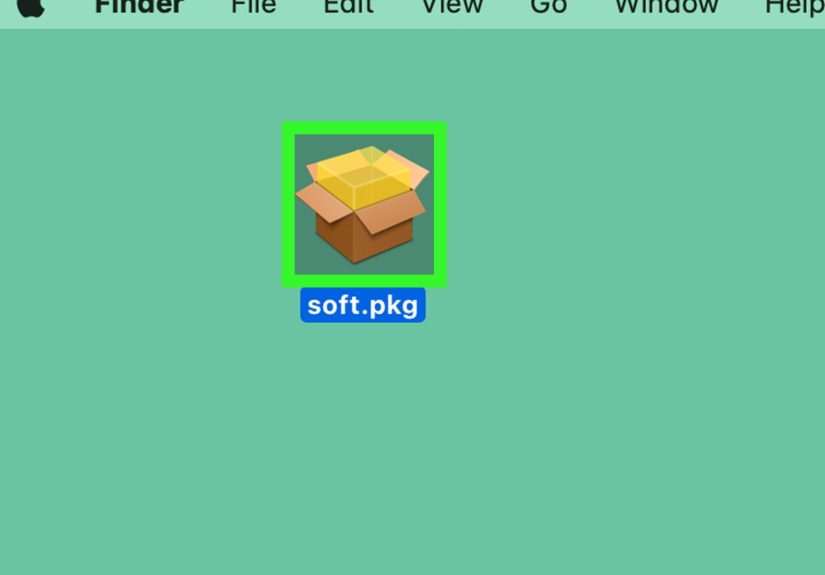
Some Mac software uses a .pkg installermacOS’s official “installer package” format. This looks more
like a traditional setup wizard: click Continue, agree to a license, choose a disk, and possibly type an admin
password.
When you’ll see a PKG
- Large productivity suites (for example, Microsoft Office installers)
- Device drivers and hardware utilities (printers, audio interfaces)
- Enterprise tools (VPN clients, security agents)
- System-level helpers that need to place files in specific folders
Step-by-step PKG install
- Find the downloaded .pkg (usually in Downloads).
- Double-click it to launch the macOS Installer.
- Follow the prompts and choose the destination disk if asked.
- If prompted, enter an administrator username/password.
- When it finishes, open the app from Applications or the Start/Launch option offered at the end.
Example: Installing Microsoft 365
Microsoft’s Mac instructions commonly involve downloading an installer package (a PKG) and running it from your
Downloads folder. After installation, you open an Office app (like Word) and sign in to activate.
Homebrew (bonus): A neat option for power users
If you’re comfortable in Terminalor you want repeatable installs on multiple MacsHomebrew is a popular
package manager. It can install command-line tools and, with Homebrew Cask, many common Mac apps.
What this is good for: developers, IT teams, tinkerers, and anyone who likes typing one command instead of clicking four windows.
Example commands (these are for illustrationonly run commands you understand and trust):
Homebrew can be fantastic, but it’s not mandatory for everyday Mac life. If the App Store is your comfort food and DMG
drag-and-drop is your reliable sandwich, Homebrew is the “I started making my own pickles” option.
Troubleshooting: When macOS Says “Nope”
Sometimes you install correctly and macOS still throws a warning. Usually, that’s your Mac doing its jobverifying the
app is safe to open. Here are the most common roadblocks and what they typically mean.
“Can’t be opened because Apple cannot check it for malicious software”
This often appears when an app isn’t notarized or the developer isn’t identified in the way macOS expects. The safest
move is to get the app from a more official source (App Store or the developer’s site) or look for a
newer version.
“The developer cannot be verified” / “Unidentified developer”
If you’re sure the app is trustworthy, macOS usually provides a controlled override:
- In Finder, Control-click the app and choose Open, then confirm.
-
Or go to System Settings > Privacy & Security and look for an option to Open Anyway
after you’ve attempted to open the app once.
If you don’t trust the source, don’t override anything. Your Mac is basically saying, “I’m not mad, I’m just concerned.”
“App is damaged and can’t be opened” (or it closes immediately)
- Delete it, re-download from the official source, and try again.
- Make sure you’re opening the copy inside Applications, not from the DMG.
- Restart your Mac if it seems stuck verifying.
Install won’t finish or asks for an admin password
Many PKG installers need an administrator account because they’re placing system-level components. If this is a school
or work Mac, you may need help from whoever manages the device. (Translation: this is where IT earns its snacks.)
After Installation: Updates, Uninstalling, and Housekeeping
Installing is only half the story. Keeping apps updated and removing ones you don’t use helps your Mac stay fast,
secure, and less cluttered.
How updates usually work
- App Store apps: Update through the App Store.
- Direct downloads: Many apps have “Check for Updates” inside the app menu.
- Homebrew apps: Updates are typically handled via Terminal (for users who chose this route).
How to uninstall an app (the safe, normal way)
- Quit the app.
- Open Applications in Finder.
- Drag the app to Trash (or select it and press Command-Delete).
- Empty Trash when you’re ready.
Some apps (especially big suites) include their own uninstallers. If the app came with an uninstaller, use itit’s
often the cleanest way to remove extra components.
A quick cleanup tip
After installing from a DMG, you can usually delete the downloaded DMG file from Downloads once the app is safely in
Applications. (The DMG is like the packaging the app shipped inyou don’t need to keep the cardboard box unless you’re
the type of person who keeps every box “just in case.”)
Common Experiences Installing Mac Apps (500+ Words)
Even though Mac installs are typically simple, real life has a way of adding plot twists. Below are common
experiences many Mac users run intoespecially when they’re bouncing between App Store installs, DMG drag-and-drop, and
PKG installers.
The “Where did my app go?” moment
A classic: you download a DMG, open it, double-click the shiny app icon, and everything seems fineuntil you restart
and the app “disappears.” What actually happened is the app was launched from the mounted DMG, not installed into
Applications. The fix is easy: drag the app into the Applications folder, eject the DMG, and launch the installed copy.
Once you’ve done this once, you’ll spot the Applications shortcut inside DMG windows like it’s flashing neon.
The “Verifying…” progress bar that feels personal
Sometimes macOS spends a while verifying an app the first time it launchesespecially if it’s newly downloaded or the
system is busy. This can feel like your Mac is judging your life choices. In reality, it’s a security step, and it
usually finishes if you give it a minute. If it seems stuck for a long time, quitting and retrying, or restarting the
Mac, often clears the logjam.
The “It wants access to WHAT?” permission pop-up
Many apps request permissions the first time you use a feature: microphone for calls, camera for meetings, files for
saving documents, or screen recording for sharing your display. The common experience here is clicking “Allow” too fast
and then wondering later why an app can “see” everything. A good habit is to approve permissions only when they make
sense. For example: a video meeting app asking for the camera? Reasonable. A flashlight app asking for your Contacts?
That’s… creative.
The “Unidentified developer” warning that sparks a mini debate
This is where many users pause and think, “Is this safe?” That’s a good instinct. Some perfectly legitimate apps are
distributed outside the App Store, and macOS will warn you if it can’t verify the developer in the expected way. The
typical user experience is checking where the file came from, looking for an official download page, and then using
the controlled “Open” option if they trust it. The key experience-based lesson: don’t override warnings for random
downloads you didn’t seek out. If the download feels sketchy, it probably is.
The “This installer needs an admin password” workplace reality
PKG installs are common in business and school environments. A frequent experience: you download a VPN client or a
device driver, start the installer, and it asks for an administrator password you don’t have. On a personally owned Mac,
that’s usually your normal login. On a managed Mac, it might be restricted. In that situation, the real-world path is
requesting approval from the device admin rather than hunting for workarounds. Not only is it safer, it avoids the
“I accidentally broke the security policies” conversationwhich is about as fun as a software license agreement.
The “Update chaos” phase (and how people get out of it)
When users mix App Store apps, direct-download apps, and maybe a couple Homebrew-installed tools, updates can feel
scattered: some update in the App Store, some have in-app updaters, and some require a terminal command. The common
best practice experience is to settle into a routine: check App Store updates occasionally, allow auto-updates where
appropriate, and only use Homebrew if you genuinely like (or at least tolerate) the command-line workflow.
The big takeaway from all these experiences is simple: the install method matters less than the habits around itdownload
from trustworthy sources, install apps properly into Applications, pay attention to security prompts, and keep things
updated. Do that, and your Mac will reward you with fewer surprises and more “it just works” moments.
Conclusion
Most Mac installs fall into three categories: Mac App Store (easy and integrated), DMG/ZIP drag-and-drop
(simple and common for direct downloads), and PKG installers (more guided, often for bigger apps or system helpers).
If you add Homebrew to the mix, you’ve got a powerful option for repeatable installsespecially if you like tools that
feel a little more “engineering-flavored.”
No matter which method you use, the smartest install move is the same: choose trustworthy sources, pay
attention to macOS security prompts, and keep your apps updated. Your future self (and your Mac) will thank you.